
很多人既想要最好的显示效果,又想要便携的尺寸,还想要能手写笔记。在以前,如此简单的需求,却很难找到趁手的机型,即便有,也是彩屏机型,显示效果不尽如人意。
而如今终于有大厂想通了,能手写的7寸黑白屏终于来了。
我手上的这位小天使,是文石刚刚发布的Leaf5+。和Leaf5相比,它俩屏幕一样、外形一样、配置一样,难道这个5+只是加了支笔吗?
当然第一眼,还是被新的配色吸引,看起来干净又清爽。哪怕去年看着还不错的森林绿,和它在一起都显得黯淡了。如果你是颜值党,那肯定会被这个天真蓝拿捏。机器正面没有什么变化,两枚超大的物理按键仍然是很显眼地存在,好用是真好用,按着舒适回弹干脆,但要是能缩小一半,就完美了。

解锁看看显示效果。如果你以为+号代表着更清晰、响应更快或者底色更白,那就误会了。这一年来,墨水屏技术并没有什么进步,它依然是Carta1300的墨水,300PPI的分辨率,也已经达到了视网膜的极限。
底色也没有变白,甚至我觉得它没有变暗就已经算是进步了,为什么这么说呢?毕竟为了支持手写笔,需要多加一层感应膜。所以有的支持手写的机型,如果你用手机微距镜头看,能看到编织的纹理。

但在Leaf5+上,当我切微距找了半天也没有看到。可以说,它在没有影响显示通透性的前提下,悄悄地支持了手写,这一点还挺让人惊喜的。
不过显示上最大的改变,其实是前光灯。直观感受就一个字:亮。我刚拿到时是在晚上,一开机我们村的鸡都叫了。同样在明亮的灯光模式下,Leaf5的灯光级别是20,而5+上只有10。更高的亮度可以把屏幕照得更白,黑白对比度更高,对于人眼来说更容易区分,也更不容易疲劳。

有人误以为电纸书只有关了灯才最护眼,其实是个误区。这就好比你在昏暗的屋子里看纸书,会觉得文字很难分辨,看一会儿就会眼酸,你会不自觉地去开灯。打开灯光线好了,文字更清晰,更不累眼。
当然了有句话叫过犹不及。我建议你平时看书,别把它打到最亮。它有32档调节,还支持暖色调,调到你既能轻松看清文字,又不觉得刺眼的亮度最合适。
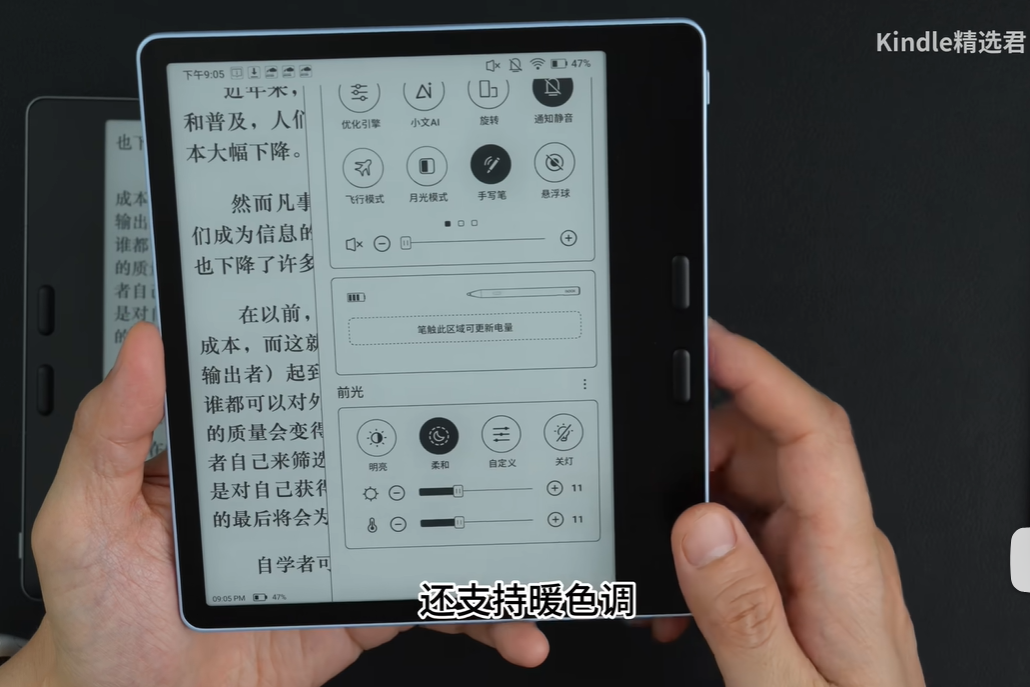
得益于亮度提升,5+的灯光均匀度也有进步。我手上这台是试产机,看着还行吧。文石的工作人员说,你们收到的大货应该比它还好一点。要是你买了,记得评论区和我反馈一下,我看看他们有没有骗我。
好,该上主菜了。我强烈建议,既然你选择了5+,那一定要给它安排上手写笔。不管是用官方的,还是买第三方的。因为只有加上笔,才能发挥出它的最大潜力。我们说文石的系统强大,有一半是功劳,都在笔记功能上。
先说最直观的阅读体验。以前在Leaf5上你要选中一段文字,那需要手指小心翼翼地点选。视线被手指一挡,不是多选就是少选,每次都得小心翼翼的。5+上有了笔,你只要在文字下一划,就能完成精确选择。遇到跨行的段落,随手画个圈,就搞定了,可以说是指哪打哪。

还可以在旁边随手写写批注,写错了涂一下就能擦除,要是觉得字不好看,双击一下就变成印刷体。而且所有手写的内容,都可以导出成PDF保存。
而提到单独的笔记功能,我就不困了。Leaf5+上完整复刻了文石大屏上的笔记软件。你可以新建手写笔记、无边笔记、会议笔记、文本笔记等等。我觉得最值得说的,就是从本地文件新建的功能,绝对是手账党的福。
你可以把任意电子书文件当成笔记模板。比如说,导入年历。我们可以在月历上写下每月的计划,点击每个日期,就能跳转到具体的日期做详细记录。据我所知,目前只有文石的电纸书支持PDF文件模板,同时还支持跳转链接。
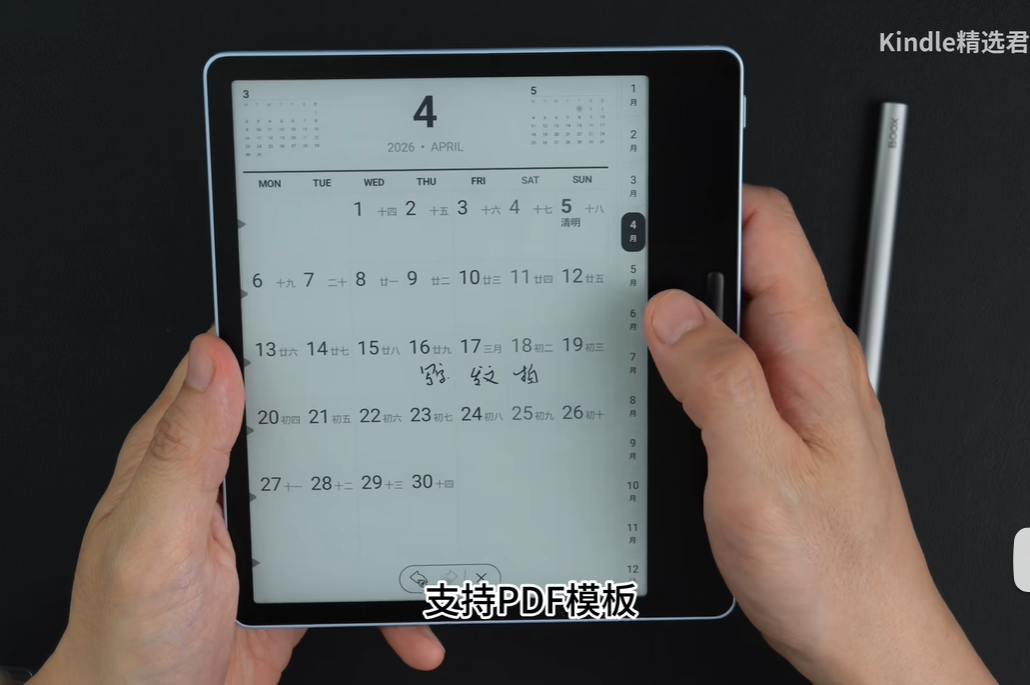
对了说到这,有很多人私信问我要年历文件,我以前的是购买的不方便分享,但现在我把这个功能集成到了电纸书助手1.2版本中,你可以自己调整生成适合自己的年历,界面我觉得还挺好看的,而且支持链接跳转。正在最后测试,过两天就会发布,等等吧。
说回笔记。在我们手写内容时,可以插入标准图形,文石的图形库还是很丰富的,这对于理科生来说非常友好。笔记中还可以插入标签,方便在快速定位。还可以为笔记制作大纲,就像书籍的目录一样。另外还有多图层、录音、打字、套索等等功能,不愧为GoodNotes平替。

在这上面写笔记,和大屏的感觉还不太一样,屏幕小刚开始会觉得有点施展不开。但它胜在便携,就像一个小的随身笔记本,写一会儿就习惯了。
不过在书写体验上,因为Leaf5+本身是玻璃屏幕,看书时显示通透,写字时就有点打滑。临时写写不会觉得难受,但你要是买它就为了写笔记,那我建议贴一层手写膜会更舒适。
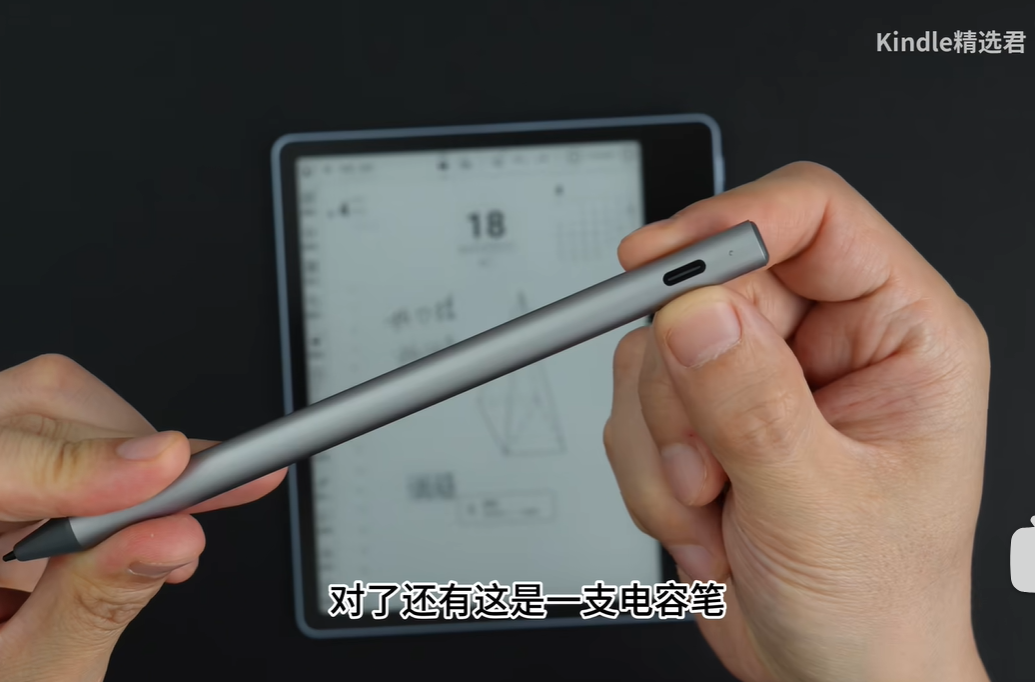
对了还有,这是一支电容笔,平时别忘了给它充电。
在软件方面,它使用的是高通690八核CPU,打开软件的速度还不错。咱们直接在实测表现。
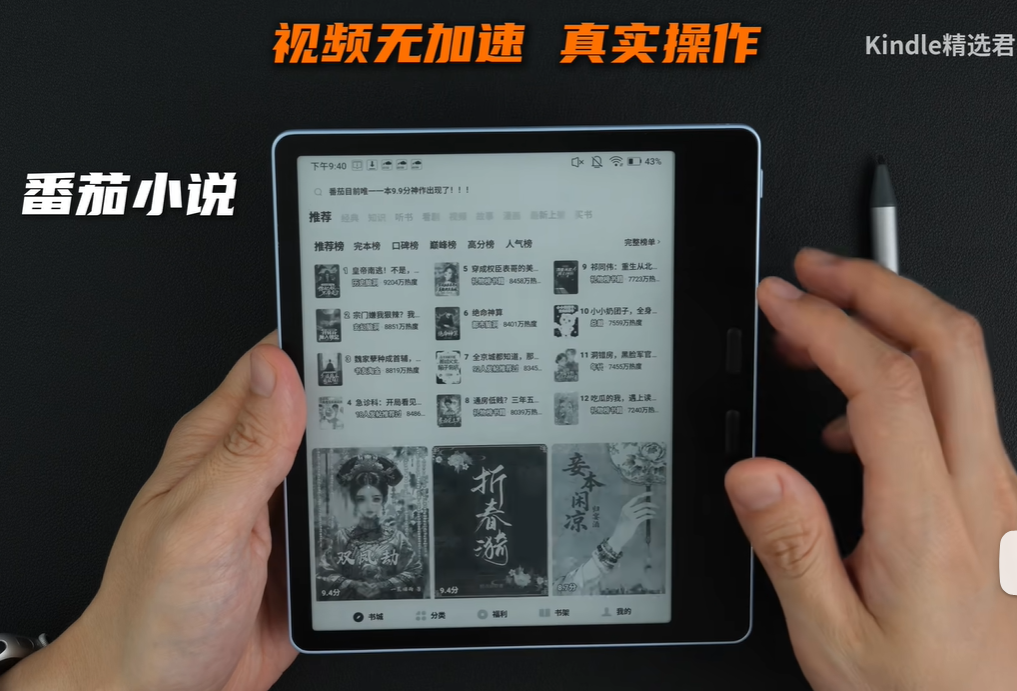
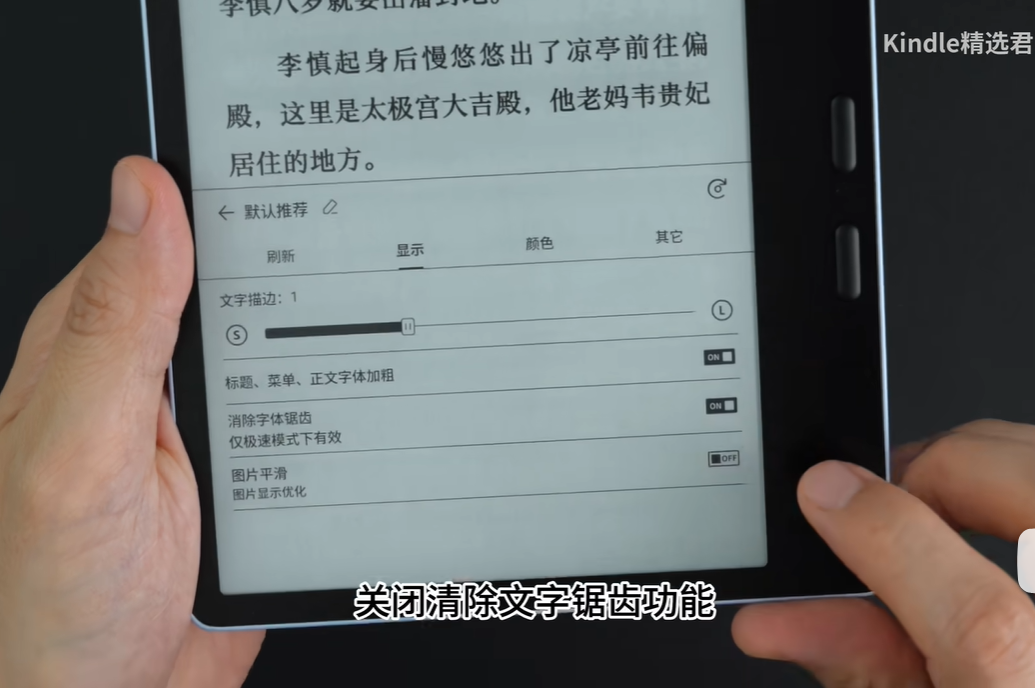
这里我要说一个小问题,如果你用番茄小说,哪怕是净清模式也仍然会看到锯齿。官方给的解决方案有点反直觉:你需要在显示设置中,关闭清除文字锯齿功能,文字一下就清晰了。还有,如果你使用第三方软件多,记得打开图片灰阶过渡。它也在显示选项卡中,打开以后图片效果更好。
OK,总结一下吧。文石Leaf5+,既有高清的显示效果,又方便携带,还支持手写笔,也算满足咱们的既要又要还要了。 如果你只看看小说翻翻漫画,那只选单机不用买笔。
但如果你想看专业书籍、有考试刷题的需求,那这支笔绝对是你的必选项。不管是通勤的地铁、自习室的角落,还是深夜的床头,随时拿出笔来,圈画重点写下想法。走马观花不如笔尖划过,看过的可能会忘,亲手写下的批注,才属于你自己。你说呢?
Original link: https://mp.weixin.qq.com/s?__biz=MzUxOTkyNzE1MQ==&mid=2247512347&idx=1&sn=9778ced39128e81d23978dd82192ecdf&chksm=f8e0724d64450a8b0f72db5b65cb3f49b1d3fc2755cf738be90aeac978cd599a8aeb58a43f06&mpshare=1&scene=24&srcid=0504c2tEebvEHV8l0dhNUBPJ&sharer_shareinfo=054eebaa1f3041f201d4b5c8340905b5&sharer_shareinfo_first=054eebaa1f3041f201d4b5c8340905b5#rd
Hey everyone, who says e-readers can't have it all?
Many people want the best display quality, a portable size, and the ability to take handwritten notes. In the past, this simple requirement was hard to fulfill with a suitable model, and even if one existed, it was a color screen with less-than-ideal display quality.
But now, finally, a major manufacturer has seen the light: a 7-inch black-and-white screen that supports handwriting has arrived.
The little angel in my hands is the newly released Boox Leaf5+. Compared to the Leaf5, they share the same screen, appearance, and configuration. So, is the 5+ just the 5 with a pen added?
At first glance, the new color scheme attracts attention — it looks clean and refreshing. Even the forest green, which looked good last year, appears dull next to it. If you're a design enthusiast, this "Naive Blue" will win you over. The front of the device remains unchanged, with two large physical buttons still very prominent. They are functional and comfortable with a firm bounce, but if they were half the size, it would be perfect.
Unlocking it reveals the display quality. If you think the + sign means sharper, faster response, or a whiter background, you're mistaken. E-ink technology hasn't progressed significantly in the past year; it's still Carta1300 ink at 300 PPI, which is already at the limit of retinal resolution.
The background hasn't become whiter — in fact, I consider it a win that it hasn't darkened. Why? Because supporting a stylus requires an additional sensor layer. On some devices with stylus support, if you look closely with a macro lens, you can see a woven texture.
On the Leaf5+, I looked and looked with my macro setting but saw nothing. This means it managed to add stylus support without compromising the display's transparency — a pleasant surprise.
The biggest change in display is actually the front light. In a word: bright. When I turned it on at night, the chickens in our village woke up. The light intensity needed to achieve the same brightness as the Leaf5 (level 20) is now only 10 on the 5+. Higher brightness makes the screen whiter, increases black-white contrast, and makes distinguishing text easier and less tiring for the eyes.
Some people mistakenly think that turning off the light is the most eye-friendly option — this is incorrect. It's like reading a paper book in a dark room; the text is hard to read, your eyes get tired, and you naturally reach for the light switch. Light improves clarity and reduces eye strain.
That said, too much of a good thing is bad. I recommend not using the brightest setting for normal reading. With 32 adjustable levels and warm tone support, choose a brightness that allows you to comfortably read without glare.
Because the brightness increased, the light uniformity of the 5+ likely improved as well. This is a pre-production model; the official says the final product should be even better. If you buy one, let me know in the comments if it's true.
Now for the main course. I strongly recommend purchasing a stylus for the 5+. Whether it's the official pen or a third-party one, the device maximizes its potential only with a pen. Half of Boox's software strength lies in its note-taking features.
First, the immediate reader benefits. On the Leaf5, selecting text required careful tapping with your finger, which often blocked your view and led to over- or under-selection. With the 5+'s pen, you can swipe under the text for precise selection, or draw a circle around a paragraph to select it — point and click, literally.
You can also scribble notes next to the text. If you make a mistake, you can erase it by smudging, or if your handwriting is poor, double-click to convert it into printed text. All handwritten content can be exported as a PDF.
Regarding separate note-taking, the Leaf5+ fully replicates the note-taking software from larger Boox models. You can create handwritten notes, infinite canvas notes, meeting notes, text notes, etc. What's worth mentioning is "creating notes from local files," which is a boon for planner enthusiasts.
You can use any e-book file as a note template. For example, import a yearly calendar, write monthly plans directly on it, and click individual dates to jump to detailed daily records. As far as I know, only Boox e-readers support PDF file templates with link jump functionality.
Speaking of which, many have asked for my calendar file. My previous one was purchased and can't be shared, but I've now integrated this feature into my E-Reader Assistant 1.2. You can generate your own customized calendar with a nice interface and link support. It's in final testing and will be released soon.
Back to note-taking. While writing, you can insert standard shapes (the Boox library is rich, good for STEM fields), add tags for quick localization, and create outlines like a book's table of contents. There are also multiple layers, voice recording, typing, and lasso tools — truly a GoodNotes alternative.
Writing on this device feels different from a larger screen; at first, the small size feels restrictive, but it's portable — like a pocket notebook. You get used to it quickly.
However, the writing experience suffers slightly because the Leaf5+ has a glass screen, which is great for reading but slippery for writing. While it's fine for quick notes, if you bought it primarily for note-taking, I recommend applying a matte screen protector for a more comfortable feel.
Oh, and this is a capacitive pen, so remember to charge it.
Hardware-wise, it uses a Qualcomm 690 octa-core CPU, and the software opens fairly quickly. Let's look at the real-world performance.
There's a small issue: if you use Tomato Novel (番茄小说), even in the clearest mode, you'll see jagged edges. The official solution is counterintuitive — turn off the "remove text jagged edges" feature in the display settings, and the text becomes sharp. Also, if you use third-party apps a lot, enable "image grayscale transition" for better picture quality.
To summarize, the Boox Leaf5+ offers high-quality display, portability, and stylus support — satisfying the "I want it all" crowd. If you just read novels and comics, the base model is sufficient without the pen.
But if you need to read technical manuals, study for exams, or take detailed notes, the stylus is essential. Whether on the subway, in the library, or at your bedside at night, you can pull out the pen and highlight or annotate instantly. Seeing is believing, but writing it down makes it yours. What do you think?