
(本文资料来源于互联网公开信息,作者本人整理后发表)
接下来的教程为zlib网页端使用教程:
之前发资源和网址被拿下了,各位找官网和客户端各凭本事吧,某个论坛平台有个专门的吧。
官网看起来应该是这样的:

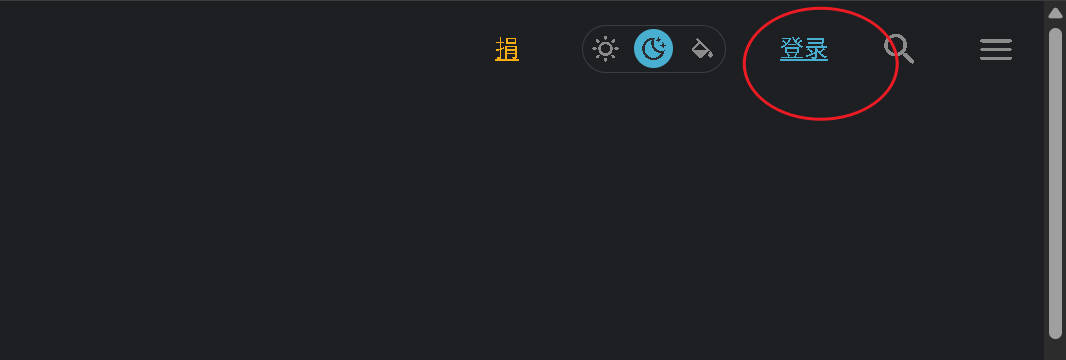
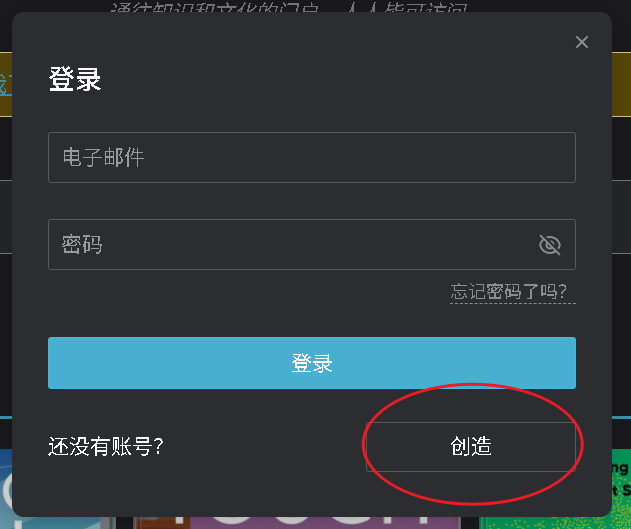
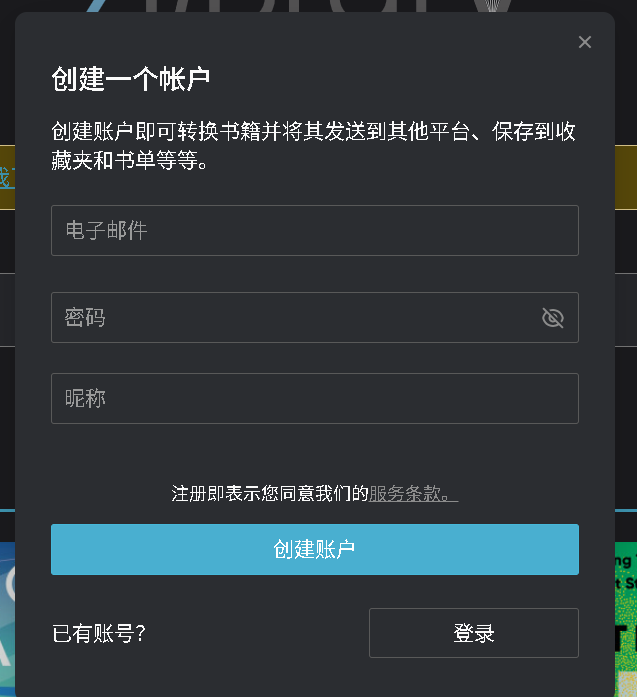
创建账号很简单,点击登录,创建账号,输入邮箱和密码即可,注意接收邮箱验证码。
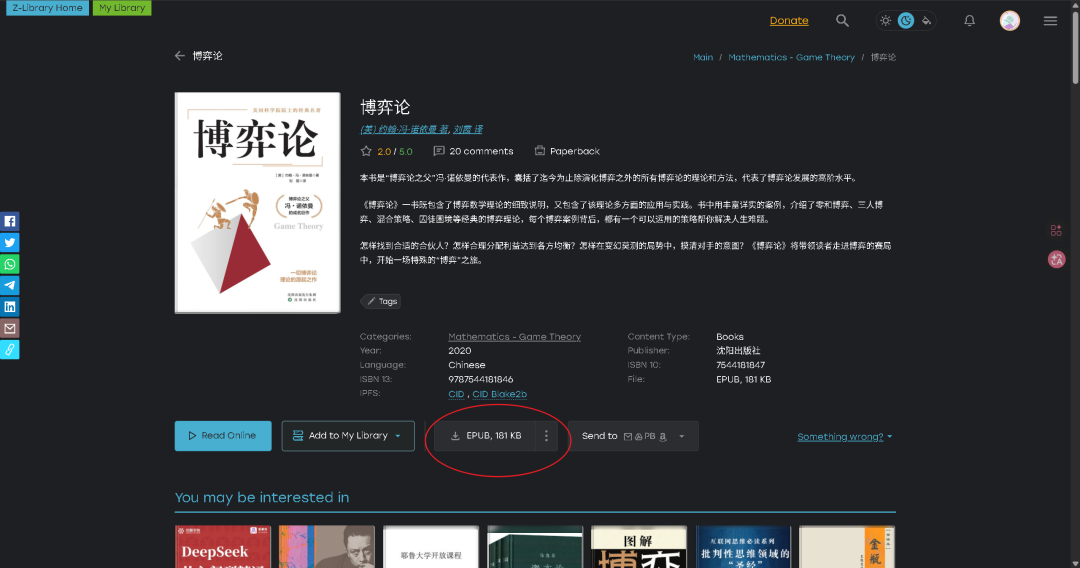
然后随便点击进入一本书,会有下载选项。
下载完后是一个epub文件,windows电脑无法直接读取,这里提供三种方法。
epub文件阅读指南:
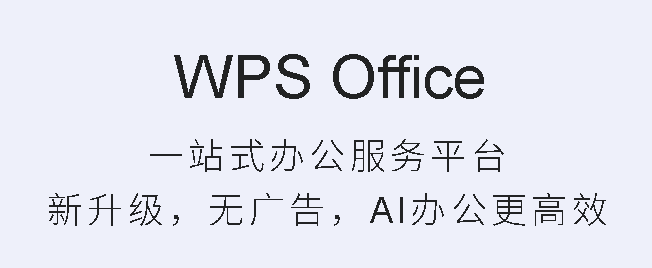
1.WPS直接打开:新版WPS应该是支持直接打开epub文件。如果电脑上没有WPS,可以看下面两种方法。
2.Neat Reader阅读器(网页版)
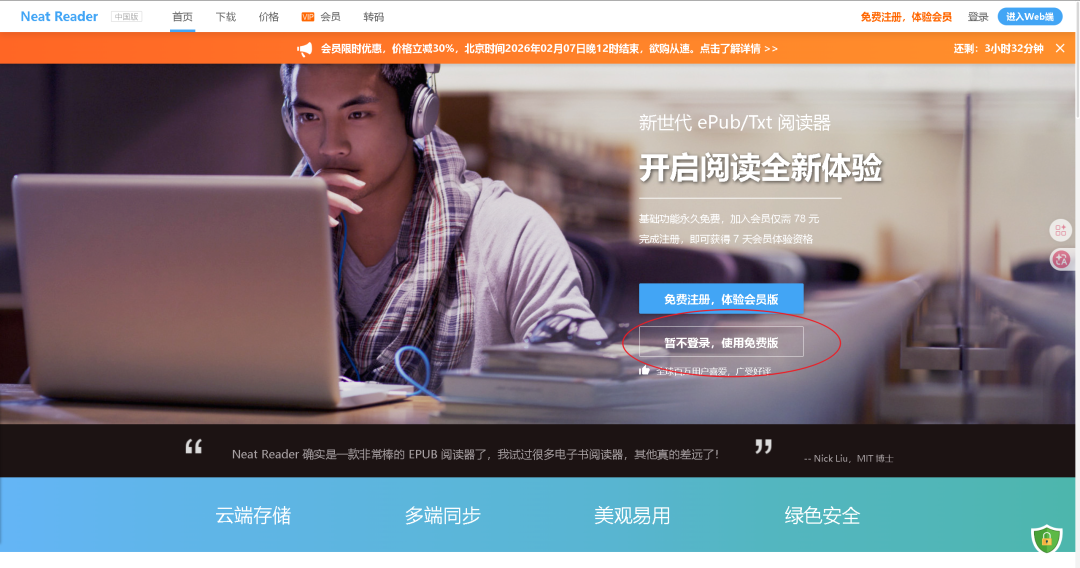
打开浏览器,搜索Neat Reader或通过官网地址进入
官网地址:https://www.neat-reader.cn/
选择“暂不登录使用免费版”,当然有钱的话注册个账号开个会员也行。
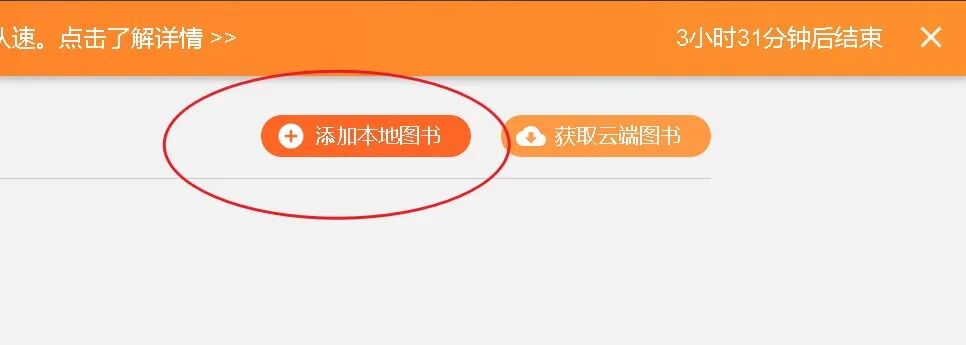
选择“添加本地图书”,将刚才下载的文件添加进去即可。
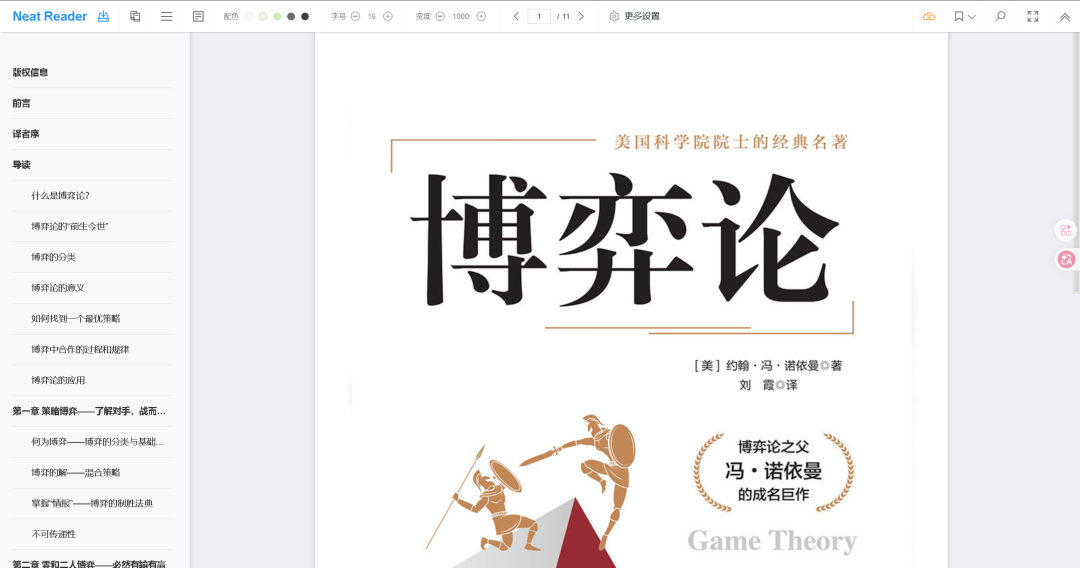
3.Vscode打开:如果和作者一样是个理工男的话可以用vscode阅读。
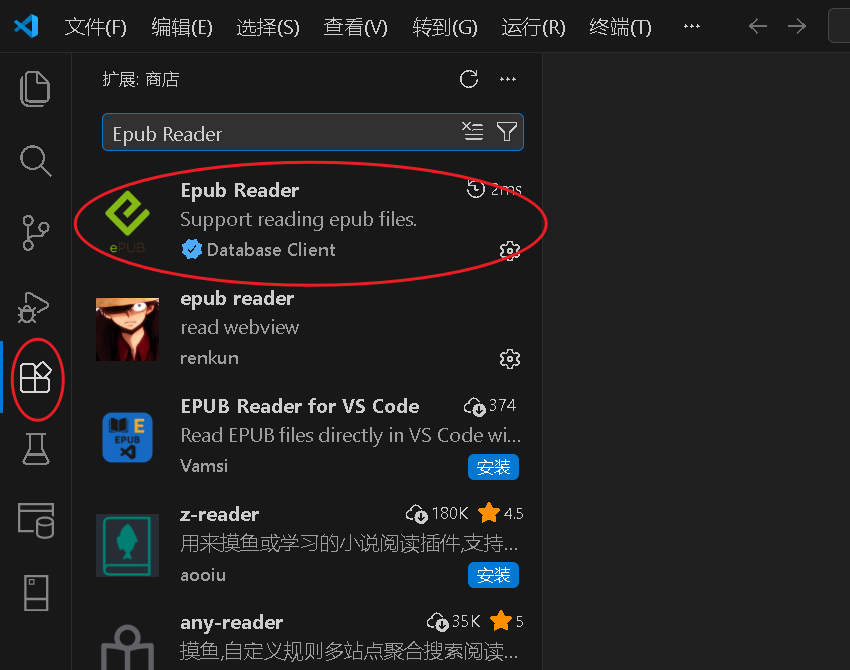
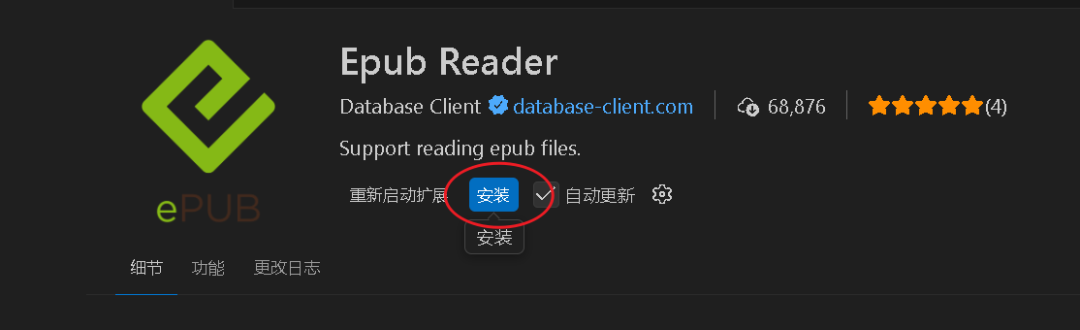
打开Vscode,选择拓展,搜索“Epub Reader”,安装。
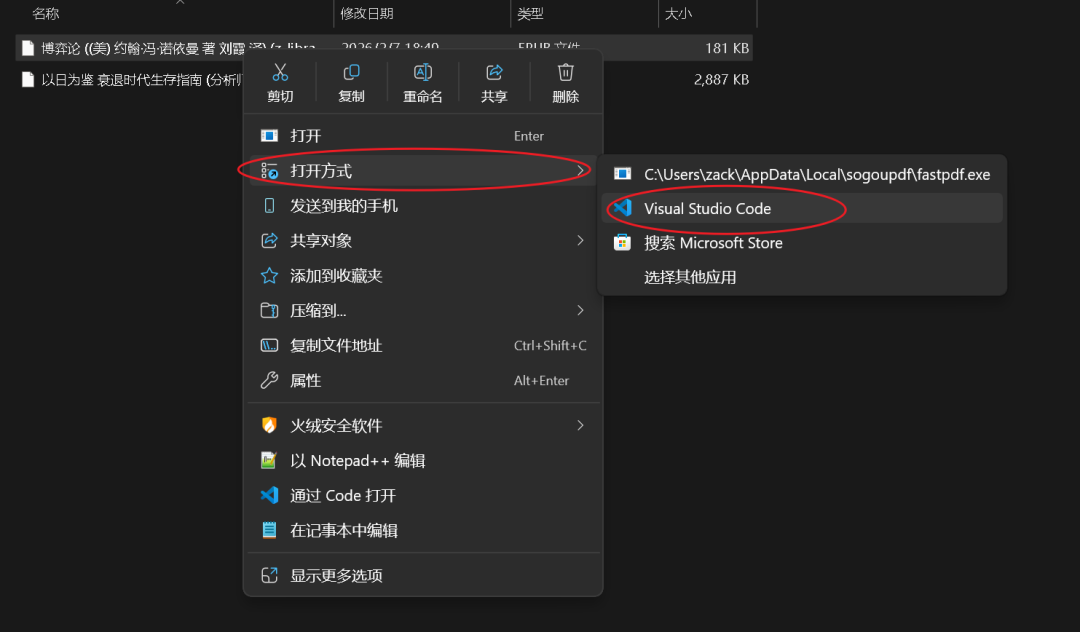
找到刚才下载的文件,右键选择用Vscode打开。
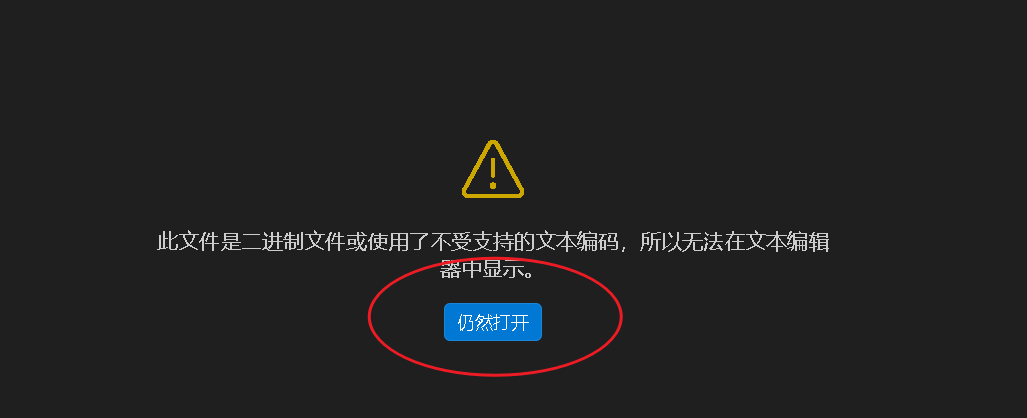
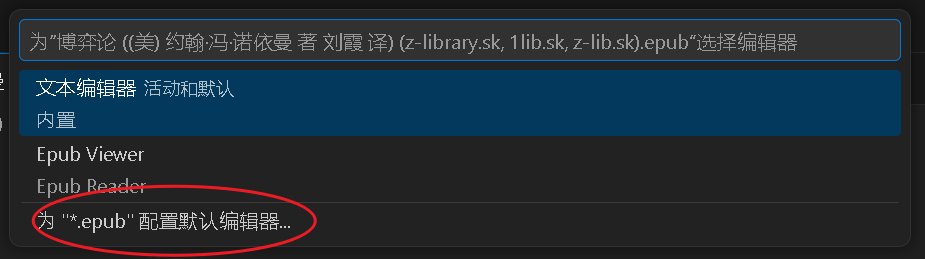
选择“仍然打开”
配置默认编辑器
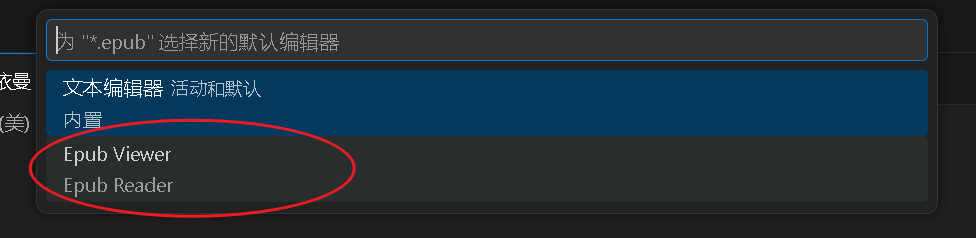
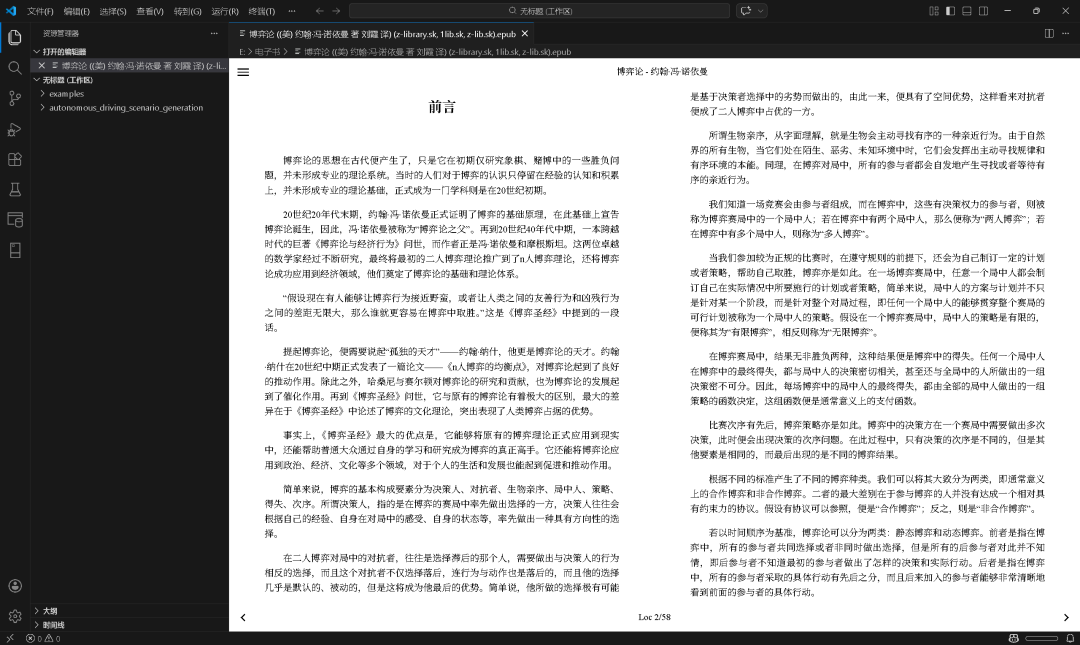
即可阅读
(The information in this article is sourced from publicly available internet data, compiled and published by the author.)
The following tutorial is the Z-Library Web End User Guide:
Previously, resources and URLs were taken down. You'll need to find the official website and client on your own. There is a dedicated section for this on a certain forum platform.
The official website should look like this:
Creating an account is simple. Click on Login, then Create Account, enter your email and password. Be sure to check your email for the verification code.
Next, click on any book to access the download options.
After downloading, you'll have an EPUB file, which Windows cannot read directly. Here are three methods to open it.
EPUB File Reading Guide:
1. Open with WPS: The new version of WPS should support direct opening of EPUB files. If you don't have WPS on your computer, try the methods below.
2. Neat Reader (Web Version)
Open your browser and search for Neat Reader or go to the official website.
Official website: https://www.neat-reader.cn/
Choose "Try Free Version without Login," or register for a membership if you prefer.
Select "Add Local Book" and import the downloaded file.
3. Open with Vscode: If you're a tech-savvy user, you can read it with Vscode.
Open Vscode, go to Extensions, search for "Epub Reader," and install it.
Locate the downloaded file, right-click, and choose to open it with Vscode.
Select "Open Anyway."
Configure the default editor.
You can now read the book.